


.svg)




.svg)

How do I remove a team member in Clozze?
Removing a team member in Clozze helps you keep your workspace organized and ensures only active collaborators have access to shared tasks and transactions. Whether someone is leaving your team or no longer needs access, Clozze allows you to remove team members quickly from your dashboard.
This guide explains the two ways you can remove a team member and what happens once they’re removed.
Step 1: Sign in to your account
Log in to your Clozze account if you haven’t already. Team management is available to the primary account holder on a Pro plan.
.svg)
Step 2: Remove a team member from User Settings
From your dashboard, click your profile photo to open the dropdown menu and navigate to User Settings.
Scroll to the bottom of the page until you see Your Team Members. From here, click the red trash icon next to the team member you want to remove.
Removing a team member from this section:
- Revokes their access to your shared team dashboard
- Removes them from shared tasks and transactions
- Updates your billing automatically
The removed user will still have a Clozze account but will no longer have access to your shared workspace.
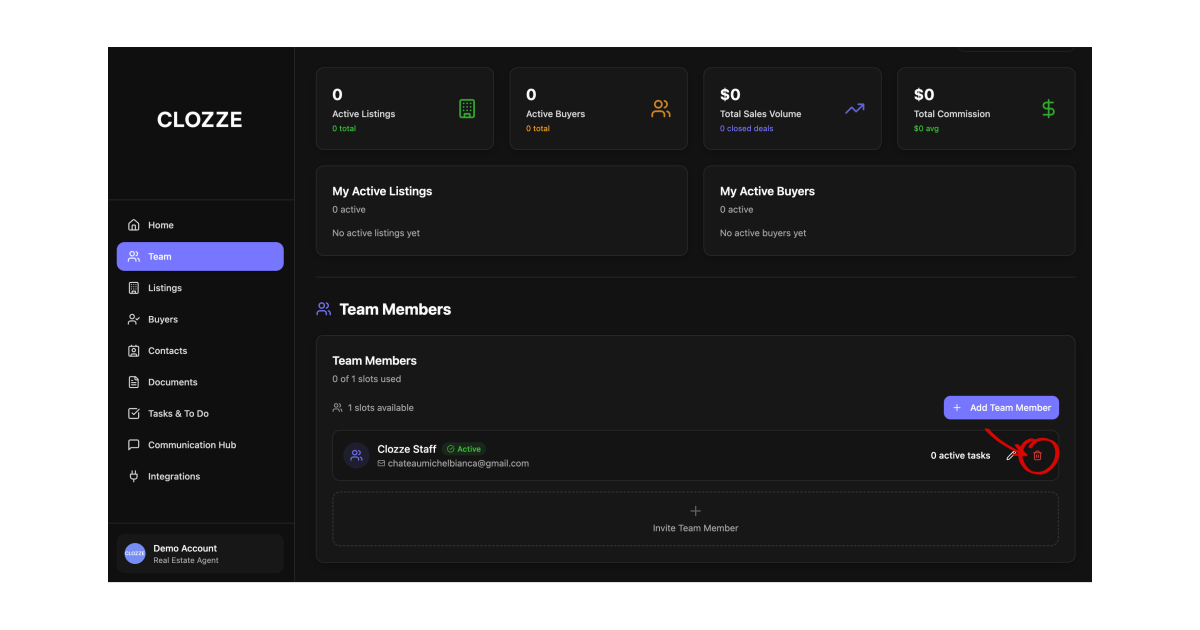
Step 3: Remove a team member from the Team page
You can also remove team members directly from the Team page in the side navigation.
From the Team page, click the red trash icon next to the team member you want to remove. This action has the same result:
- The user is removed from your account
- Billing is adjusted
- Shared dashboard and task access is revoked
The user will still be able to access Clozze independently but will no longer be connected to your workspace.
You’re all set!
Once a team member is removed, your workspace and billing will update automatically. If you need to replace a team member or move access to another user, visit How to switch users to continue managing your team efficiently.
