


.svg)






.svg)

.svg)
How do I modify a team member in Clozze?
Managing your team in Clozze includes keeping member information accurate and up to date. Whether you’re correcting an email, changing a user assignment, or transitioning access to a new collaborator, Clozze allows you to modify team member details directly from your dashboard.
This guide explains how to update a team member’s information and what happens when those changes are applied.
Step 1: Log in and access your team settings
Sign in to your Clozze account if you haven’t already. Team member information can be modified from either User Settings or the Team page in the side navigation.
To update a team member from User Settings:
- Click your profile photo
- Navigate to User Settings
- Scroll down to Your Team Members
- Click the pencil icon next to the team member you want to update
From here, you can enter the new name and email address.
Please note: updating a team member’s name or email will automatically send a new invitation to the updated user and remove the previous user from your shared workspace. The previous user will still have a Clozze account but will no longer be able to view your shared tasks or dashboard.
Step 2: Modify a team member from the Team page
You can also update team member information directly from the Team page in the side navigation.
On the Team page, click the pencil icon next to the team member you want to modify. Both locations follow the same update process.
.svg)
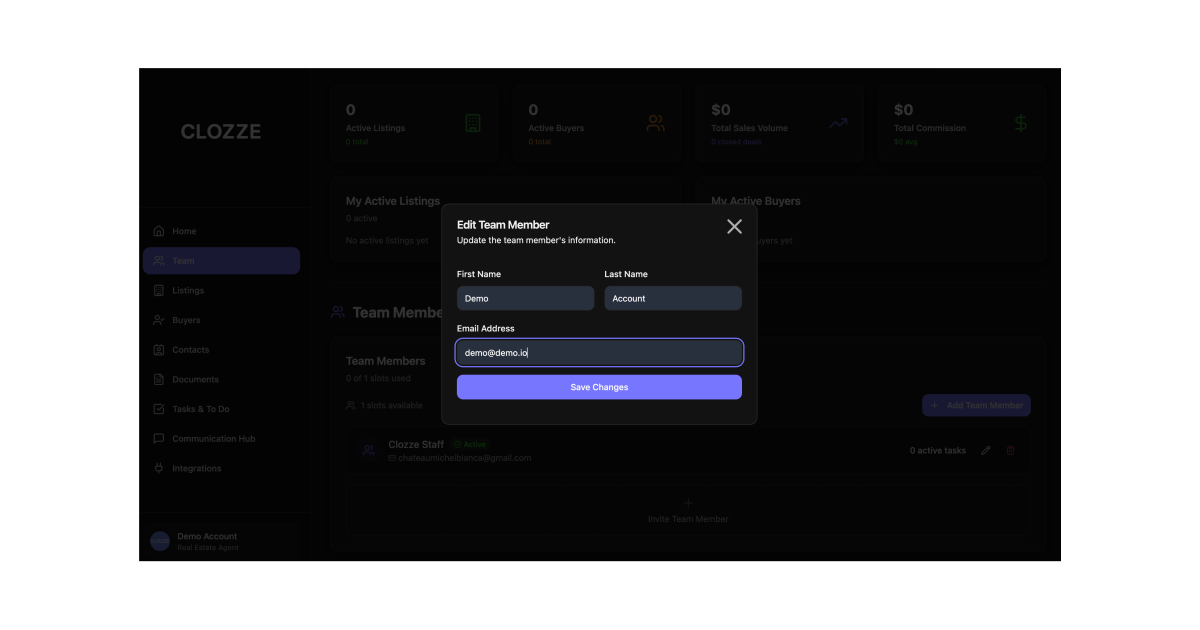
Step 3: Enter the new team member’s information
After clicking the pencil icon, enter the new team member’s name and email address and save your changes.
Please note:
- Updating a name or email automatically sends a new invitation to the updated user
- The previous user is removed from your shared workspace
- The previous user will still have a Clozze account but will no longer be able to view your shared tasks or dashboard
Be sure the new user accepts and activates their invitation. Until the new user activates their account, the previous team member may continue to have access to the shared workspace.
You’re all set!
Once the new team member activates their account, access updates automatically and your workspace stays organized. Keeping team member information current helps ensure tasks, transactions, and collaboration stay aligned as your real estate team evolves.
