


.svg)






.svg)

.svg)
How do I add a buyer in Clozze?
Adding buyers in Clozze helps real estate agents, brokers, and transaction coordinators manage transactions, tasks, and timelines in one organized workspace. Buyers can be added manually, imported from documents, or connected through supported integrations, allowing teams to centralize transaction details and streamline day-to-day operations.
Step-by-step guide
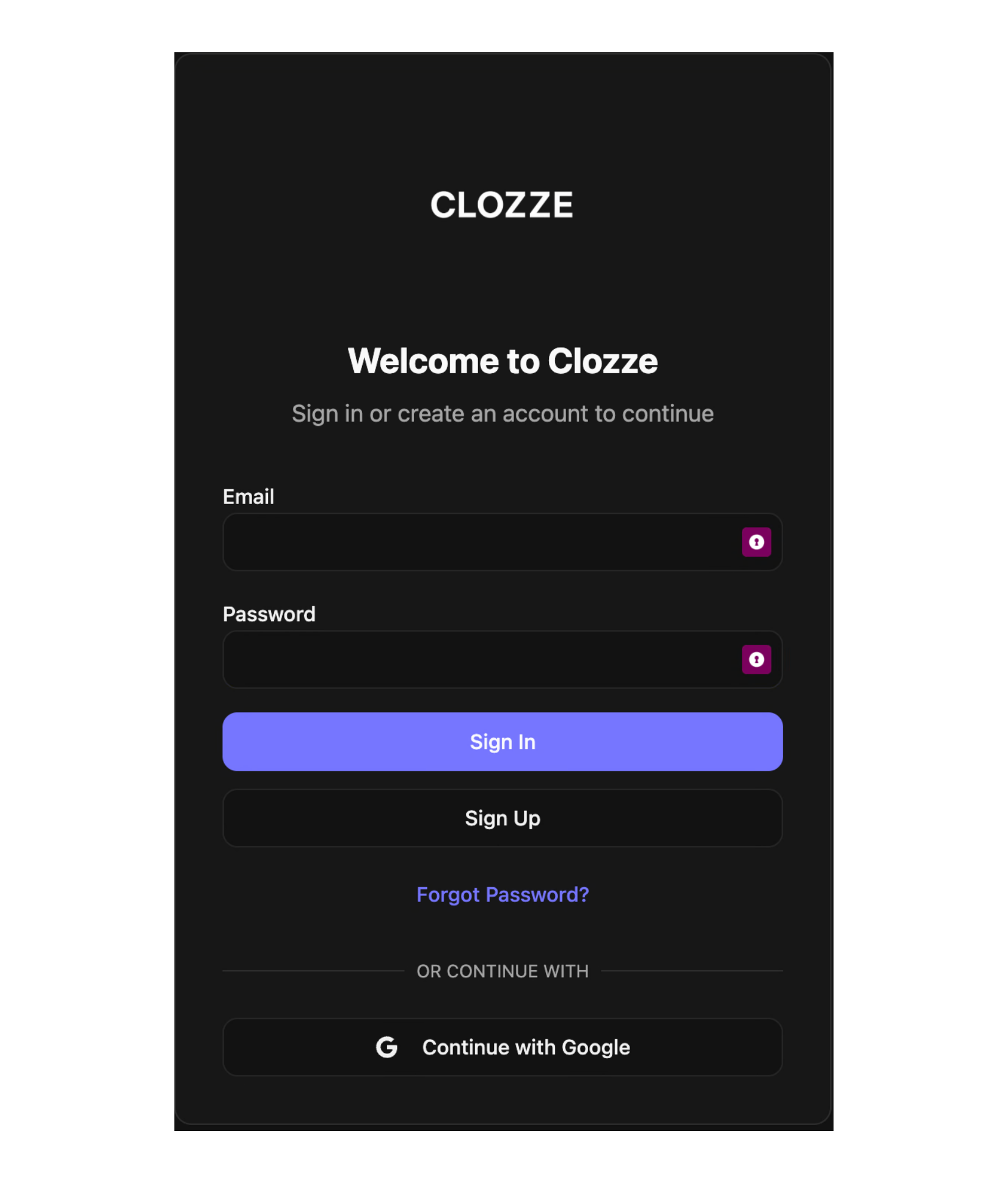
Step 1. Sign in to Clozze
Log in to your Clozze account and open your main dashboard.
Step 2. Start adding a buyer
From your dashboard, you can add a buyer from two locations:
- From the home screen using Upload File or Add Buyer
- From the Buyers page in the left-side navigation
Both options create a new buyer profile connected to your workspace.
.png)
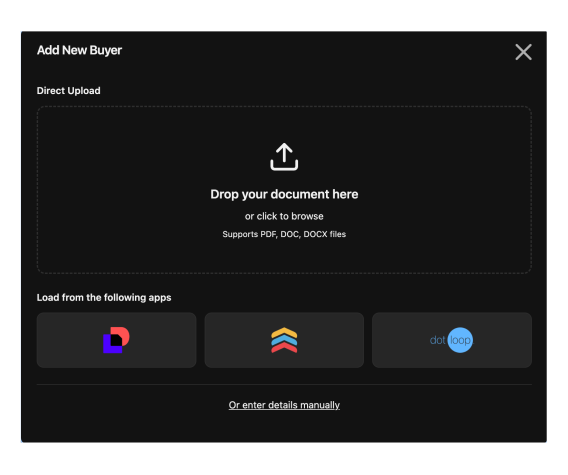
Step 3. Choose how to add your buyer
Clozze offers multiple ways to add buyer information based on how you work.
You can:
- Upload a document. Clozze uses AI to read supported documents and automatically extract buyer details and related information.
- Enter buyer details manually if you prefer full control.
- Import buyer information from connected tools such as Dotloop, Follow Up Boss, or DocuSign.
This flexibility allows teams to reduce manual data entry while keeping information accurate.
Step 4. Customize the buyer profile
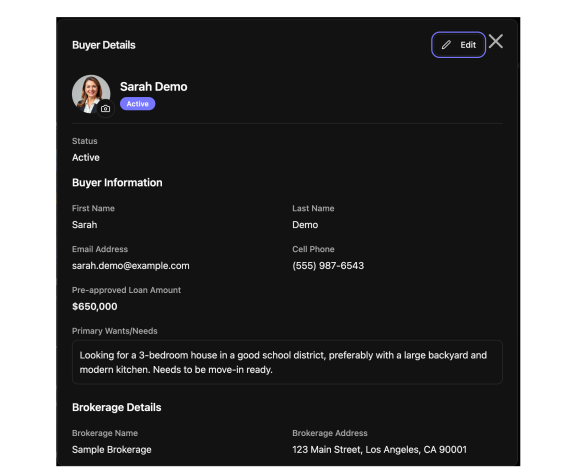
Once your buyer is added, you can customize the profile to match your transaction workflow.
From the buyer profile, you can:
- Add and assign tasks
- Customize dates and timelines
- Edit transaction-related details
- Adjust scopes and responsibilities as needed
This ensures each buyer is fully integrated into your transaction process.
Adding buyers in Clozze creates a central source of truth for transaction coordination. Whether entered manually, imported through AI document parsing, or synced from existing tools, buyer profiles help teams track tasks, timelines, and progress throughout the transaction lifecycle. This approach supports real estate professionals looking for modern transaction management, automation, and compatibility with existing CRMs and transaction software.
Step 2. Start adding a buyer
From your dashboard, you can add a buyer from two locations:
- From the home screen using Upload File or Add Buyer
- From the Buyers page in the left-side navigation
Both options create a new buyer profile connected to your workspace.
Step 3. Choose how to add your buyer
Clozze offers multiple ways to add buyer information based on how you work.
You can:
- Upload a document. Clozze uses AI to read supported documents and automatically extract buyer details and related information.
- Enter buyer details manually if you prefer full control.
- Import buyer information from connected tools such as Dotloop, Follow Up Boss, or DocuSign.
This flexibility allows teams to reduce manual data entry while keeping information accurate.
Step 4. Customize the buyer profile
Once your buyer is added, you can customize the profile to match your transaction workflow.
From the buyer profile, you can:
- Add and assign tasks
- Customize dates and timelines
- Edit transaction-related details
- Adjust scopes and responsibilities as needed
This ensures each buyer is fully integrated into your transaction process.
Adding buyers in Clozze creates a central source of truth for transaction coordination. Whether entered manually, imported through AI document parsing, or synced from existing tools, buyer profiles help teams track tasks, timelines, and progress throughout the transaction lifecycle. Clozze supports real estate professionals looking for modern transaction management, automation, and compatibility with existing CRMs and transaction software.

Video Tutorial

