


.svg)






.svg)

.svg)
How to Connect Your Google Calendar in Clozze
Connecting your Google Calendar in Clozze helps real estate agents, brokers, and transaction coordinators keep transaction tasks, deadlines, and events organized in one place. By syncing your calendar, you can view important transaction dates alongside your existing schedule and reduce the risk of missed deadlines during active deals.
This guide walks through how to connect your Google Calendar in Clozze so your real estate transaction tasks stay aligned with your day-to-day calendar. Once connected, tasks you add inside Clozze can automatically appear as events in your Google Calendar, giving you a clearer view of upcoming responsibilities across multiple transactions.
Step 1: Log into Your Clozze Account
To get started, log into your Clozze account and access your main workspace. Calendar connections are managed directly from your profile and integrations settings, so make sure you are logged in before continuing.
Step 2: Choose How You Want to Connect Your Calendar
You can connect your Google Calendar in Clozze using either of the following methods:
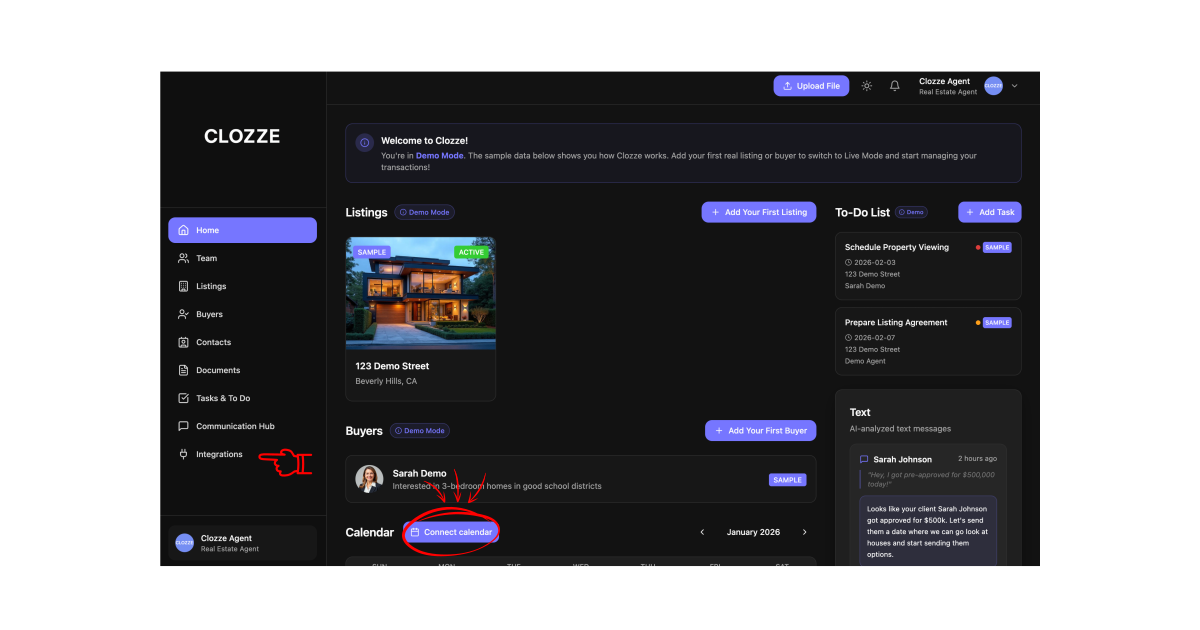
From the home dashboard, click Connect Calendar to begin the integration process right away.
Or, navigate to the left sidebar, click Integrations, and select Google Calendar to connect your account from the integrations panel.
Both options lead to the same secure Google authorization flow.
Step 3: Connect Your Google Calendar
Follow the prompts to authorize Clozze to access your Google Calendar. Once the connection is complete, your calendar will be successfully linked to your Clozze workspace.
At this point, no additional setup is required.
What Happens After You Connect Your Calendar
After your Google Calendar is connected, you can begin adding tasks inside Clozze. These tasks will sync automatically, and if you choose, they will appear as events in your Google Calendar. This makes it easier to track transaction deadlines, appointments, and key milestones alongside your existing schedule.
By keeping tasks and events synced, real estate professionals can manage multiple transactions more efficiently and stay on top of important dates without switching between tools.
Connecting your Google Calendar to Clozze is a simple way to streamline real estate transaction workflows, improve visibility into deadlines, and stay organized across deals. Once your calendar is synced, you can focus on managing buyers, listings, and tasks with confidence, knowing your schedule and transaction timelines are always aligned.

Video Tutorial

.png)
