


.svg)






.svg)

.png)
How do I add a team member in Clozze?
Adding team members in Clozze allows you to collaborate with real estate agents, transaction coordinators, assistants, and brokers in a shared workspace. Team access is available on Pro accounts and enables shared tasks, visibility across transactions, and coordinated workflows.
This guide walks through how to upgrade your account, purchase seats, and invite team members to your Clozze workspace.
Step 1: Upgrade to a Pro account
Team members can only be added on a Pro account. Users on the 30-day free trial can explore the platform but cannot invite team members until they upgrade.
If you already have a Clozze account, you can upgrade by:
- Clicking your profile photo
- Selecting Settings or Subscription from the dropdown
- Upgrading your account to Pro
If you are new to Clozze and want to collaborate right away, you can sign up for a Pro account directly at:
Once your Pro account is active, you’ll be able to add seats and invite team members.
.svg)
Step 2: Navigate to the Team section
After signing in, go to your home dashboard and select Team from the navigation sidebar. This section is where you manage seats, invitations, and active team members.
.svg)
Step 3: Purchase seats
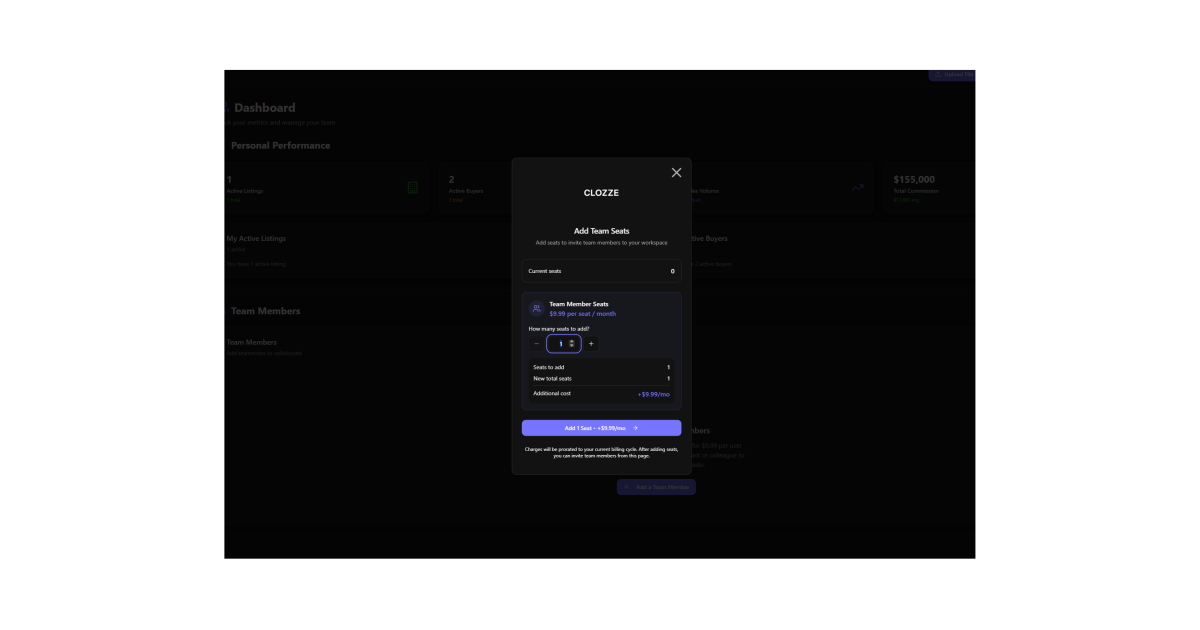
In the Team section, click Add a team member. You’ll be prompted to select how many seats you want to add.
After choosing the number of seats, click Add X team members, which will take you to a secure Stripe checkout page to complete your purchase.
Once checkout is complete, the seats will be available in your workspace.
Step 4: Invite your team member
After purchasing seats, you can invite team members by entering their:
- First name
- Last name
- Email address
Clozze will send an invitation to the email provided. Once the invited user signs up, they will appear in your Team section with a status of Active.
You’re all set!
Once your team member is active, you can begin assigning tasks, sharing transaction work, and collaborating in real time. Clozze makes it easy to manage real estate operations with your team in one place, whether you’re working with a single assistant or coordinating across multiple roles.

Video Tutorial

.svg)
