


.svg)






.svg)

.svg)
How do I add a task in Clozze?
Tasks in Clozze help real estate agents, brokers, and transaction coordinators manage the day-to-day work behind transactions. Tasks can be created on their own or linked to a buyer or listing, making it easy to stay organized while keeping all work visible in one place.
Step-by-step guide
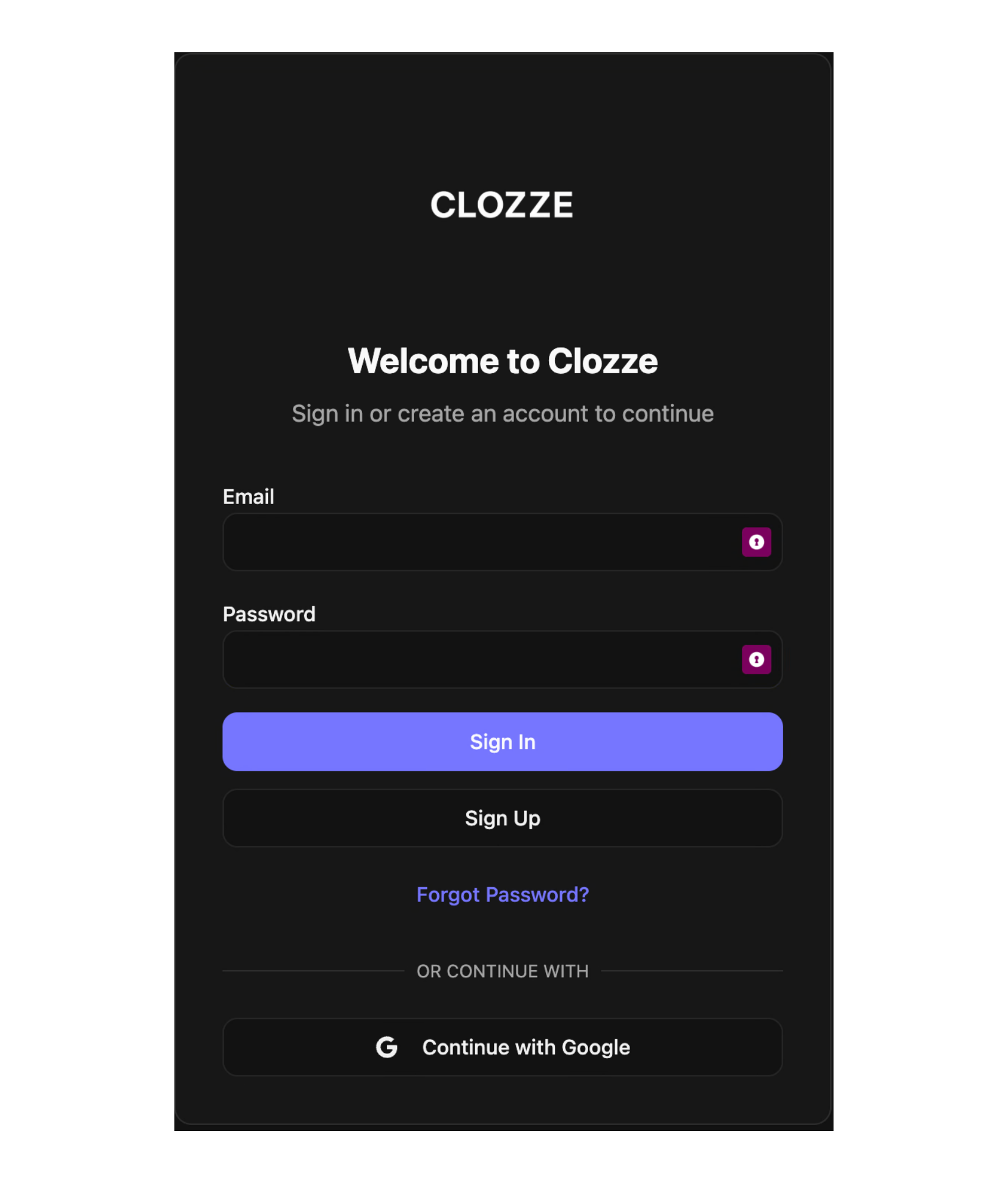
Step 1. Sign in to Clozze
Log in to your Clozze account and open your main dashboard.
Step 2. Choose where to add a task
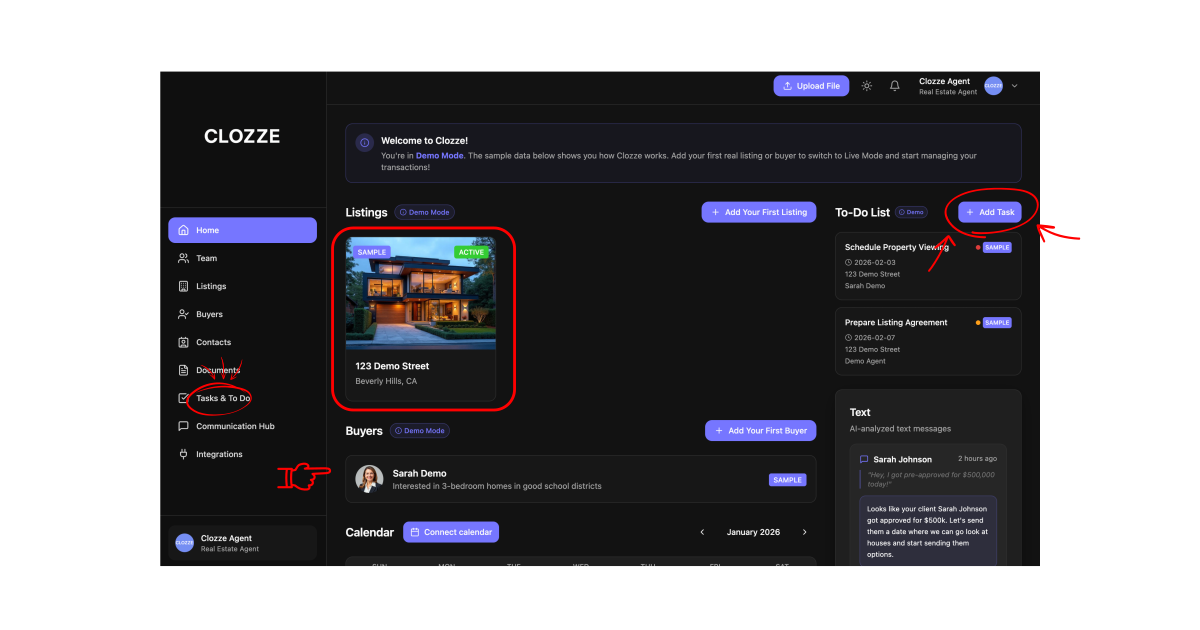
Tasks can be added from multiple locations depending on how you’re working.
You can add a task:
- From the dashboard
- From within a buyer profile
- From within a listing profile
- From the Tasks and To-Do section
Each option creates a task that lives in your workspace and stays connected to the relevant transaction details.
Step 3. Decide how the task should be organized
Tasks in Clozze can be created in two ways:
- Standalone tasks, which live in the Tasks and To-Do section alongside all other tasks
- Assigned tasks, which are linked to a buyer or listing
Tasks assigned to a buyer or listing will appear:
- In the main Tasks and To-Do section
- Inside the associated buyer or listing profile
This provides added visibility and keeps transaction-specific work easy to find.
.svg)
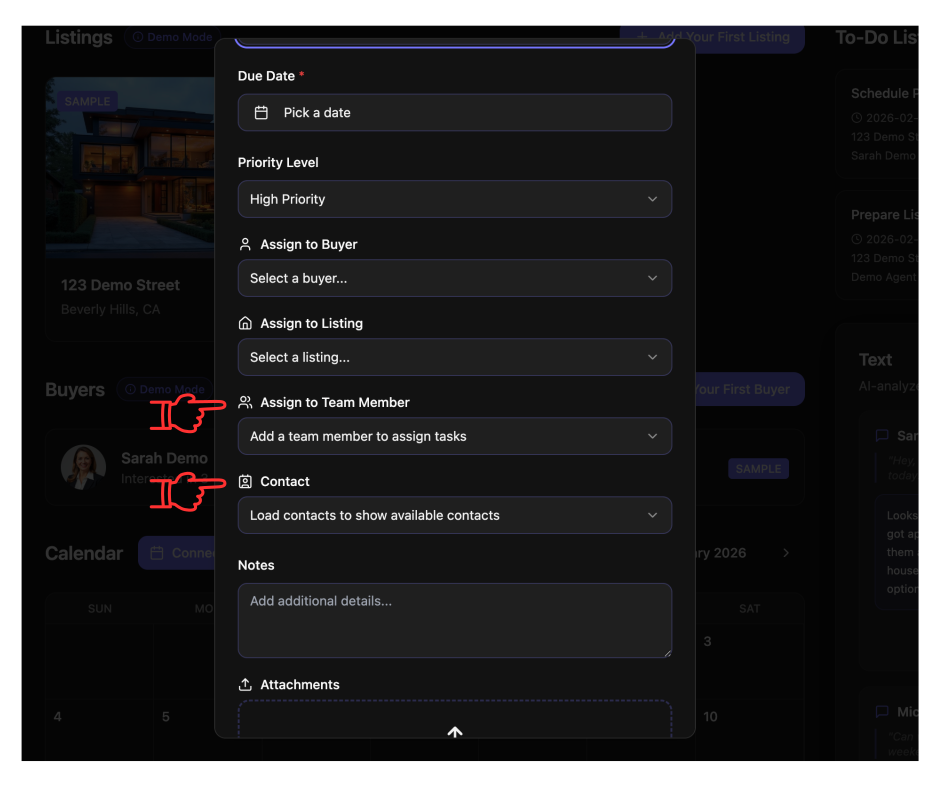
Step 4. Assign people to the task
When creating or editing a task, you can assign:
- One or more team members
- One or more contacts
Contacts can include external partners such as lenders, title agents, inspectors, or other parties involved in the transaction.
Multiple team members can also be assigned to a single task. For example, if two or more team members are hosting an open house, they can all be assigned to the same task.
Step 5. Save and manage the task
Once created, tasks can be updated at any time. You can adjust dates, change assignments, or move tasks between buyers, listings, or standalone work as needed.
Common questions about tasks and team access
Can I add multiple team members to my Clozze account?
Yes. Clozze supports multiple team members working from the same dashboard. This allows agents, assistants, transaction managers, and brokers to collaborate on tasks and transactions in one shared workspace.
Will team members have access to my dashboard?
Yes. Team members added to your account can view your dashboard and see tasks assigned to them, along with shared transaction information relevant to their role.
Each team member added to your account is billed at $9.99 per seat, which provides full access to the shared workspace and assigned tasks.
Can I assign more than one team member to a task?
Yes. Tasks can be assigned to multiple team members at the same time. This is useful for shared responsibilities such as open houses, inspections, or transaction coordination work.
Can I remove team members from my account?
Yes. You can remove team members from your account at any time. Once removed, they will no longer have access to your dashboard, tasks, or transaction information.
Closing section
Tasks in Clozze are designed to support modern real estate workflows by keeping work organized, visible, and easy to manage. Whether tasks are standalone or tied to a buyer or listing, Clozze helps teams coordinate responsibilities, collaborate efficiently, and maintain clarity across every transaction. Clozze supports real estate professionals looking for task automation, team collaboration, and transaction management without relying on disconnected tools.

Video Tutorial

